Contact Us

If you still have questions or prefer to get help directly from an agent, please submit a request.
We’ll get back to you as soon as possible.

Please fill out the contact form below and we will reply as soon as possible.

  • Contact Us
Spanish (Mexico)
HR Croatian
PL Polish
DE German
US English (US)
ES Spanish
MX Spanish (Mexico)
  • Home
  • Gestión de pedidos
  • Guías prácticas para pedidos

¿Cómo cambio qué Cliente está asociado a un Pedido?

Esta guía paso a paso te muestra cómo eliminar un Cliente existente y agregar uno nuevo a la Orden.

Written by Annukka Matilainen

Updated at October 29th, 2026

Contact Us

If you still have questions or prefer to get help directly from an agent, please submit a request.
We’ll get back to you as soon as possible.

Please fill out the contact form below and we will reply as soon as possible.

  • Notas de la versión
    Lanzamientos de 2026
  • Funciones recién lanzadas
    Noticias importantes Nuevas funciones Cinturón negro360 Roles y permisos
  • Empezando
    Visión General Cómo hacerlo
  • Gestión de pedidos
    Guías prácticas para pedidos Listas de pedidos Usando archivos Estimaciones de costos Edición por lotes
  • Gestión de empleados
  • Gestión de clientes
    Privacidad de datos Comunicarse con los clientes Agregar y eliminar clientes
  • Portal del cliente
  • Automatizaciones
  • Gestión de stock
    Resolución de errores de stock Agregar y recibir productos Gestión de inventario
  • Facturación
  • Informes
    Informes estándar Informes integrados y personalizados Informes avanzados
  • Campos personalizados
  • Integraciones
    Envío y transporte Finanzas Inicio de sesión único (SSO) Integraciones de pago API para desarrolladores Fixably Contabilidad Xero WhatsApp Business
  • GSX
    Creando reparaciones Gestión de reparaciones Resolución de errores Preguntas frecuentes Integración GSX Devoluciones de piezas
  • Listas de precios
  • Envíos
  • Contratos de servicios
  • Configurando su entorno
    Configuración de correo electrónico Importación de datos Configuración del sistema Seguridad
  • Solicitudes de piezas
  • Asignación de piezas entrantes
  • Reserva de citas
+ More
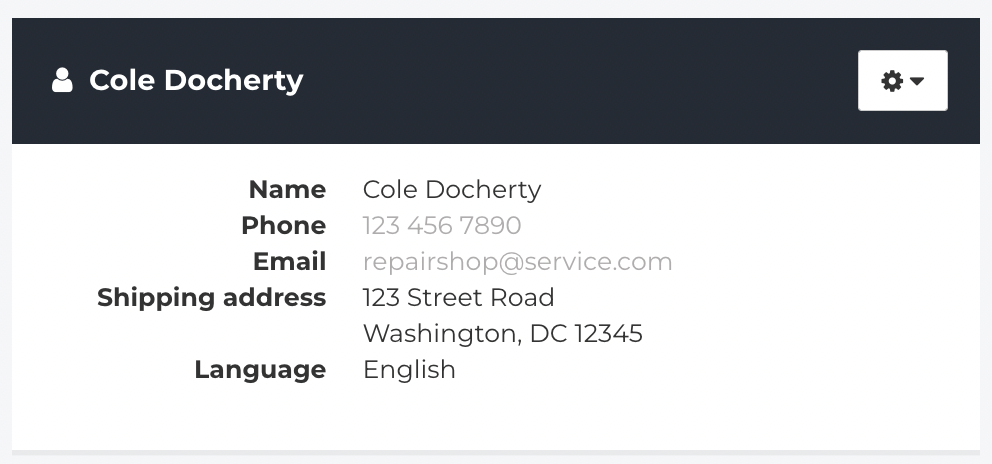
  1. Navega a la sección de Cliente de tu Pedido.


  2. Desde el menú de Engranaje, selecciona Eliminar del Pedido.
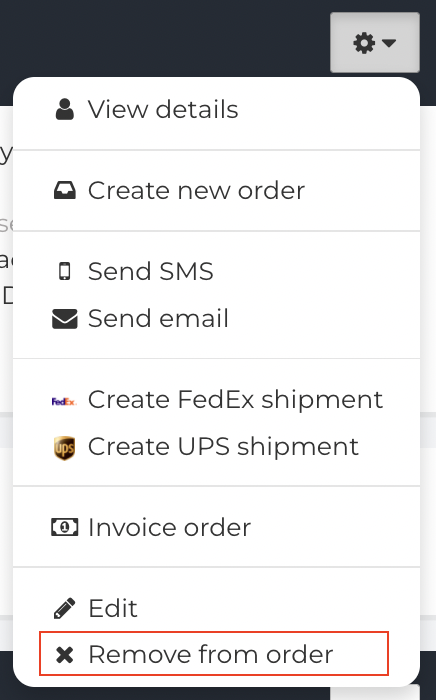

Ahora puedes Agregar un nuevo cliente a esta orden de trabajo.

asociar pedido

Was this article helpful?

Yes
No
Give feedback about this article

Related Articles

  • ¿Cómo añado un Cliente a un Pedido?
  • ¿Cómo puedo ver el historial de pedidos anteriores asociados a un dispositivo?
  • ¿Cómo puedo utilizar dispositivos de préstamo en Fixably ?
  • ¿Cómo puedo usar la función Borrador al agregar Productos a un Pedido?
Get started today and start fixing hardware with software
Thank you! We will contact you shortly.
Oops! Something went wrong while submitting the form.
ProductsFixably RepairFixably RefurbFixably Depot
SolutionsAASPsEnterprise ServiceRefurbishersMulti-Brand Repairs
ResourcesAll ResourcesCustomer StoriesBlog
CompanyAbout UsCareers
Follow UsFacebookInstagramTwitterLinkedIn

Contact Us

sales@fixably.comsupport@fixably.com
Fixably RepairRepair ManagementGSX IntegrationInventory & StockCustomer ExperienceReporting & DataPoint of SaleFixably Paperless

North America  Sales

+1 888 305 401220289 Stevens Creek Blvd #1070
Cupertino, CA 95014
United States

Europe  Sales

+358 9 424 51149Kaisaniemenkatu 7
00100 Helsinki
Finland

Contact Us

sales@fixably.comsupport@fixably.com
Copyright © Fixably Ltd.Privacy PolicyTerms of ServiceData Processing Agreement

Copyright 2026 – Fixably.

Knowledge Base Software powered by Helpjuice

Expand