Contact Us

If you still have questions or prefer to get help directly from an agent, please submit a request.
We’ll get back to you as soon as possible.

Please fill out the contact form below and we will reply as soon as possible.

    English (US)
    HR Croatian
    PL Polish
    DE German
    US English (US)
    ES Spanish
    MX Spanish (Mexico)
    • Home
    • Integrations
    • GSX
    • Resolving Errors

    How do I resolve errors stating that my GSX Activation Token has expired?

    This article is a step-by-step guide to resolving errors related to expired GSX Activation Tokens.

    Written by Annukka Matilainen

    Updated at May 19th, 2026

    Contact Us

    If you still have questions or prefer to get help directly from an agent, please submit a request.
    We’ll get back to you as soon as possible.

    Please fill out the contact form below and we will reply as soon as possible.

    • Release Notes
      2026 Releases 2025 Releases 2024 Releases
    • Getting Started
      Configuring Your Environment
    • Order Management
      Orders How-To Guides Batch Edit Order Lists Using Files Cost Estimates Appointment Booking Customer Portal Insurance Handling
    • Stock Management
      Products and pricing Troubleshooting Part Requests Managing Inventory Purchasing and receiving Returns
    • Invoicing
    • Reporting
      Report Builder
    • Integrations
      Shipping and Transportation Finance Single Sign-on (SSO) Payment Integrations Fixably API Blackbelt360 Xero Accounting WhatsApp Business GSX
    • Service Contracts
    • Settings & Configuration
      Roles & Permissions Automations Custom Fields Employee Management Customer Management System Settings Email and SMS Setup Importing Data Security
    • Shipping & Logistics
      Manifests
    + More

    GSX Activation Tokens periodically expire. When they do, some features related to your GSX Integration may not work as intended. 
     

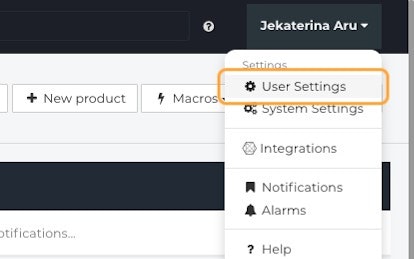
    1. From the Fixably Home Screen, click on your User Name Menu.
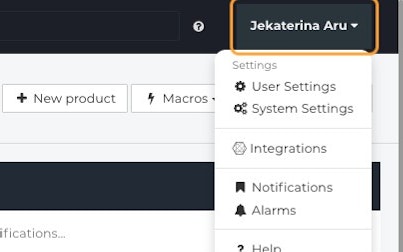


    2. Click on User Settings.


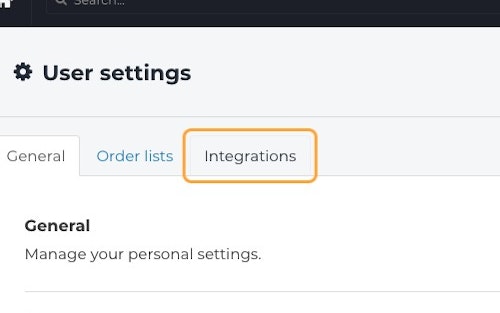
    3. Go to the Integrations tab.


    4. Open your GSX settings by clicking the Expand button.
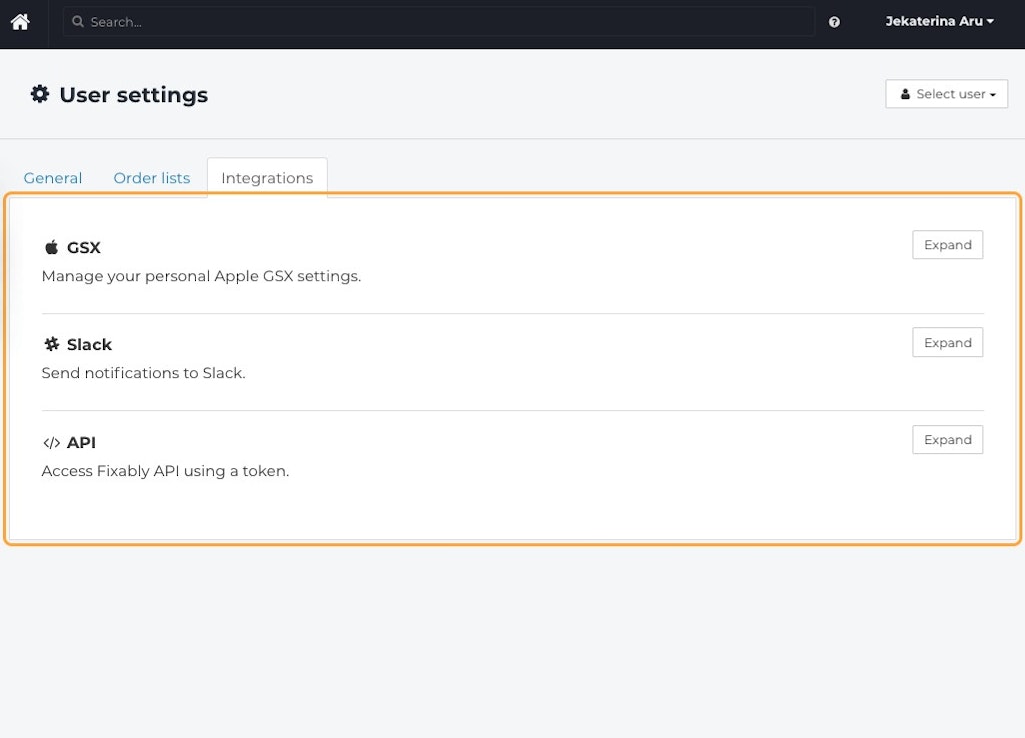


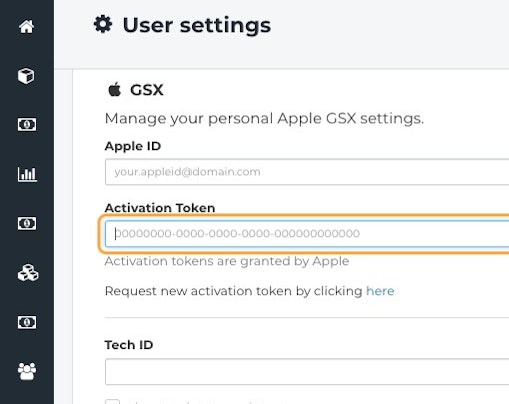
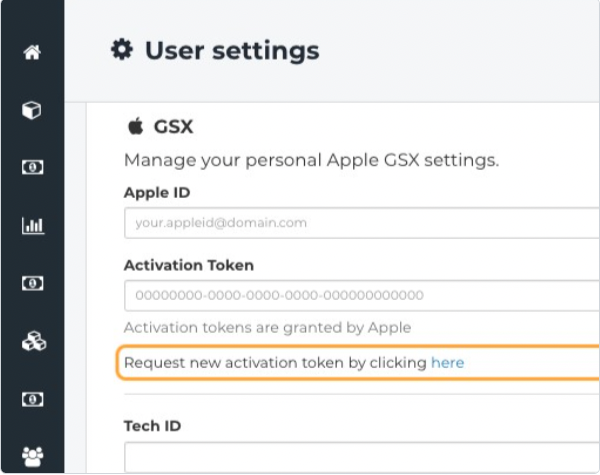
    5. Check your Activation Token.


    6. If your token has expired, click Request a new activation token by clicking here.

       
    7. You will be redirected to Apple API Token Portal, where you would need to log in with your credentials and follow instructions on the website
      .
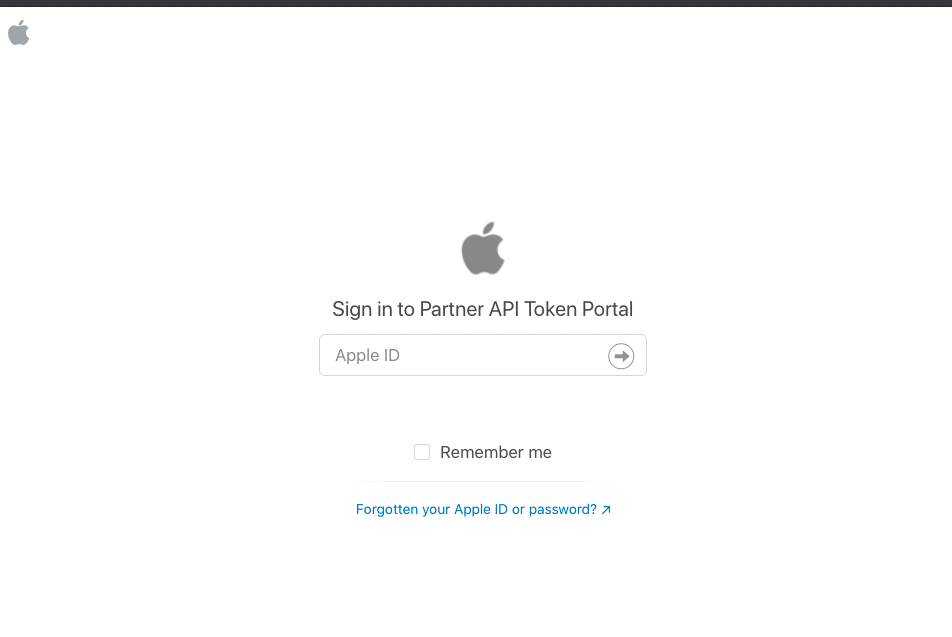
       
    8. Copy your Activation Token from the Apple API Token Portal to the Activation Tokenfield in Fixably. 

       
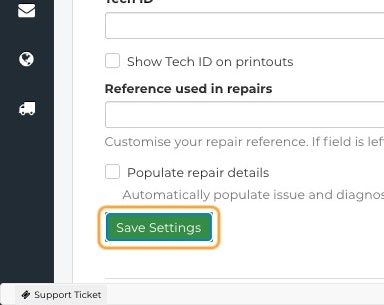
    9. When complete, click Save Settings.


    10. Navigate back to your Order and attempt to use the GSX Integration as you usually would. 
    gsx token expiration activation errors resolve api token gsx gsx account gsx personal account activation token error gsx repair token renew api token resolving errors

    Was this article helpful?

    Yes
    No
    Give feedback about this article

    Related Articles

    • How do I resolve GSX Error 403?
    • What is required to configure an Apple GSX Integration?
    • How do I configure the Apple GSX integration?
    • How do I resolve "KGB Device Identifier" errors when creating GSX repairs?
    Get started today and start fixing hardware with software
    Thank you! We will contact you shortly.
    Oops! Something went wrong while submitting the form.
    ProductsFixably RepairFixably Depot
    SolutionsAASPsEnterprise ServiceRefurbishersMulti-Brand Repairs
    ResourcesAll ResourcesCustomer StoriesBlog
    CompanyAbout UsCareers
    Follow UsFacebookInstagramTwitterLinkedIn

    Contact Us

    sales@fixably.comsupport@fixably.com
    Fixably RepairRepair ManagementGSX IntegrationInventory & StockCustomer ExperienceReporting & DataPoint of SaleFixably Paperless

    North America  Sales

    +1 888 3600 63920289 Stevens Creek Blvd #1070
    Cupertino, CA 95014
    United States

    Europe  Sales

    +358 45 4900 549Kansakoulukatu 3
    00100 Helsinki
    Finland

    Contact Us

    sales@fixably.comsupport@fixably.com
    Copyright © Fixably Ltd.Privacy PolicyTerms of ServiceData Processing Agreement

    Copyright 2026 – Fixably.

    Knowledge Base Software powered by Helpjuice

    Expand